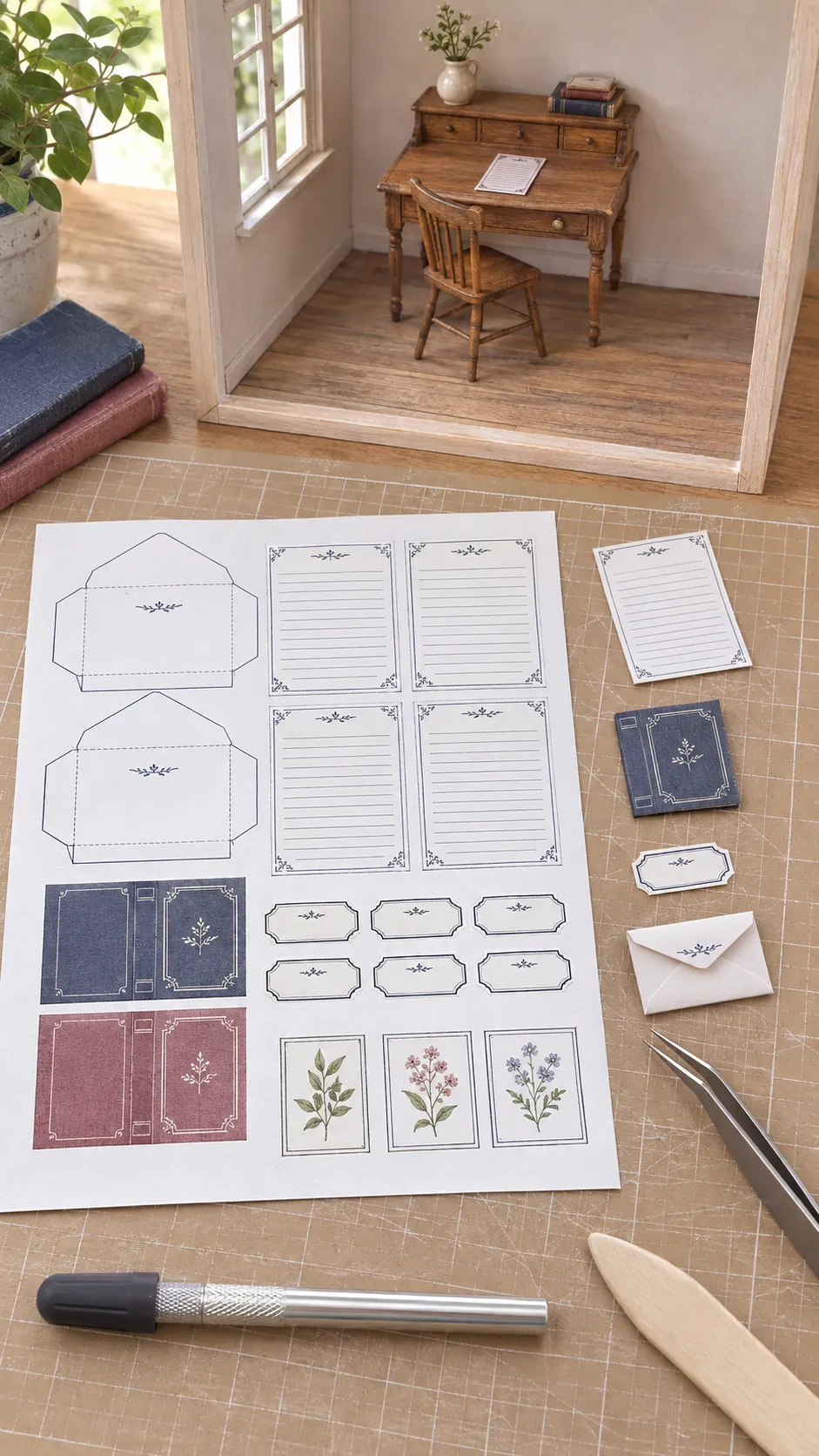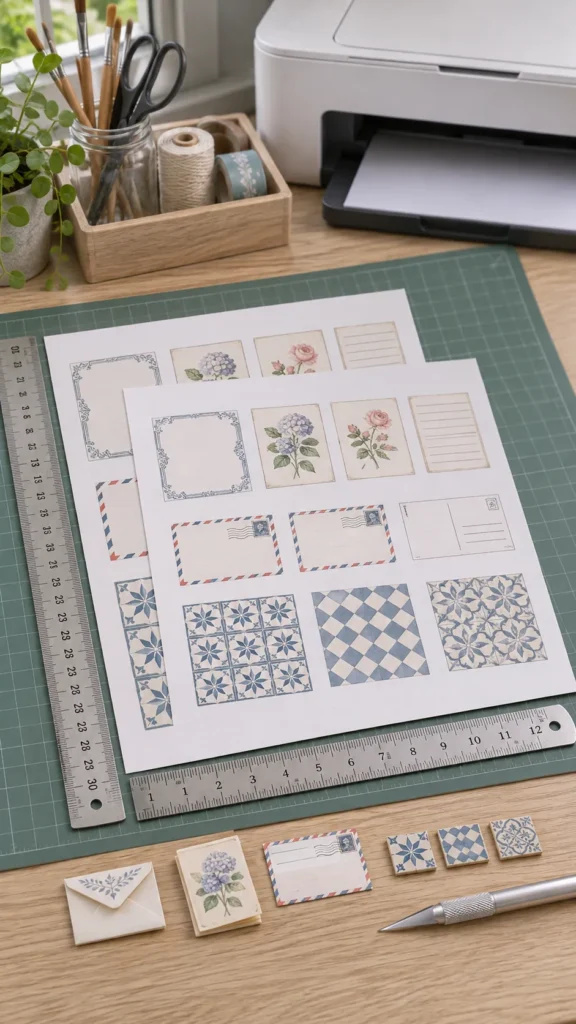
A tiny label can look perfect on screen and still come out too small, clipped, or slightly distorted on paper. The usual cause is not the printable itself. It is a quiet disagreement between the document size, the paper loaded in the printer, and an automatic scaling option in the print dialog.
For miniatures, even a small percentage change matters. A cabinet label, tile repeat, or book cover that shifts by only a few millimetres can stop matching the intended scale. The safest method is to separate two decisions: first choose the correct paper size, then protect the artwork scale.
Understand the A4 and US Letter difference
A4 measures 210 by 297 millimetres. US Letter measures 8.5 by 11 inches, which is about 216 by 279 millimetres. Letter paper is a little wider, while A4 paper is noticeably taller. Neither format is simply a larger version of the other because their proportions differ.
That proportion difference explains why a printer can leave extra space on two edges or warn that part of a page falls outside the printable area. It does not mean the miniature must change size. If the design fits inside the smaller shared area of both formats, it can usually print at its intended scale on either paper.
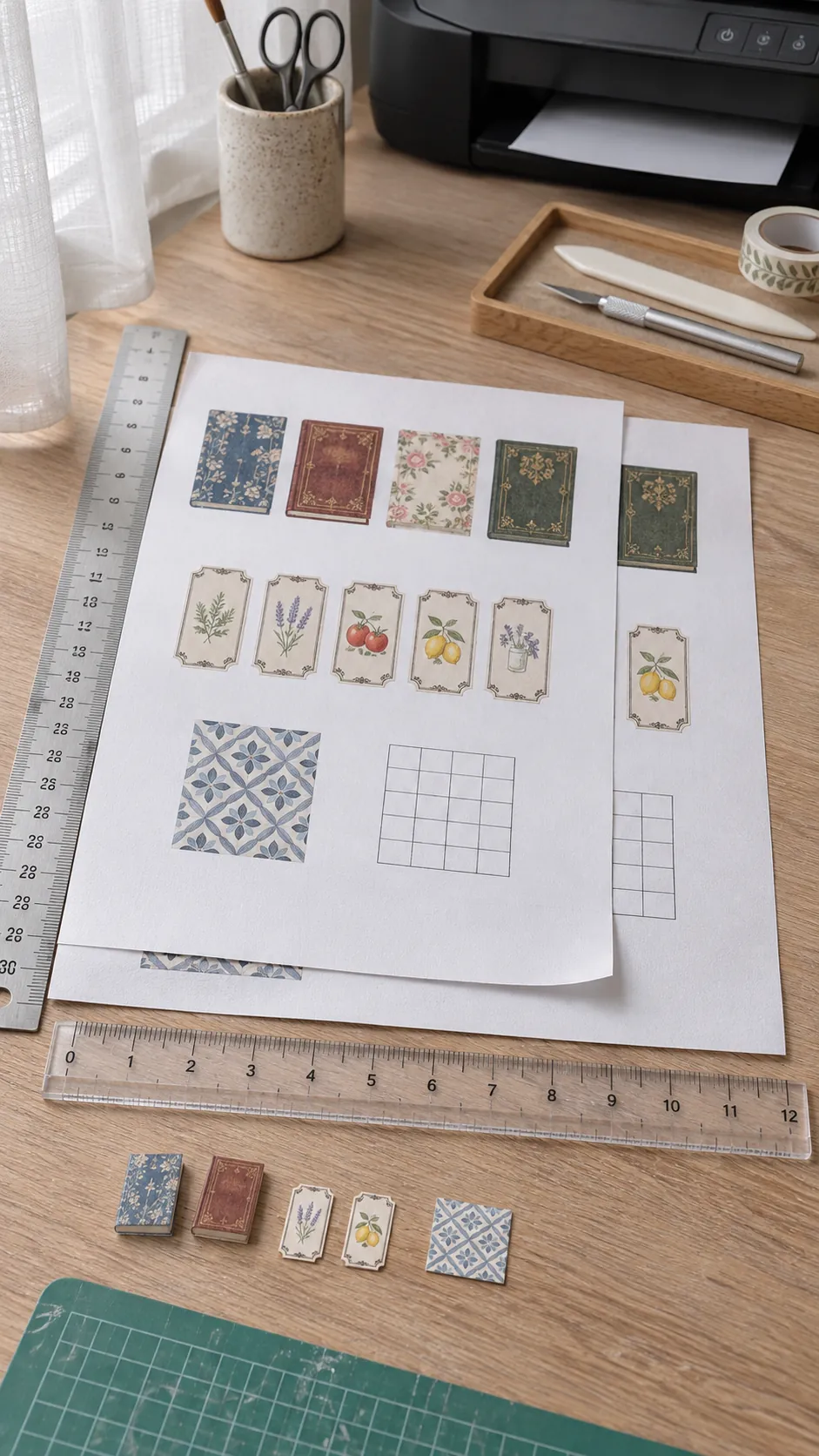
Choose Actual Size before you print
Open the file in a PDF reader when possible, then look for a size or scale section in the print window. Select Actual Size or enter 100 percent. Clear options named Fit, Shrink, Scale to Fit, or Fit to Printable Area. Those convenience settings are useful for ordinary documents, but they can change a 1:12 scale printable without making the change obvious.
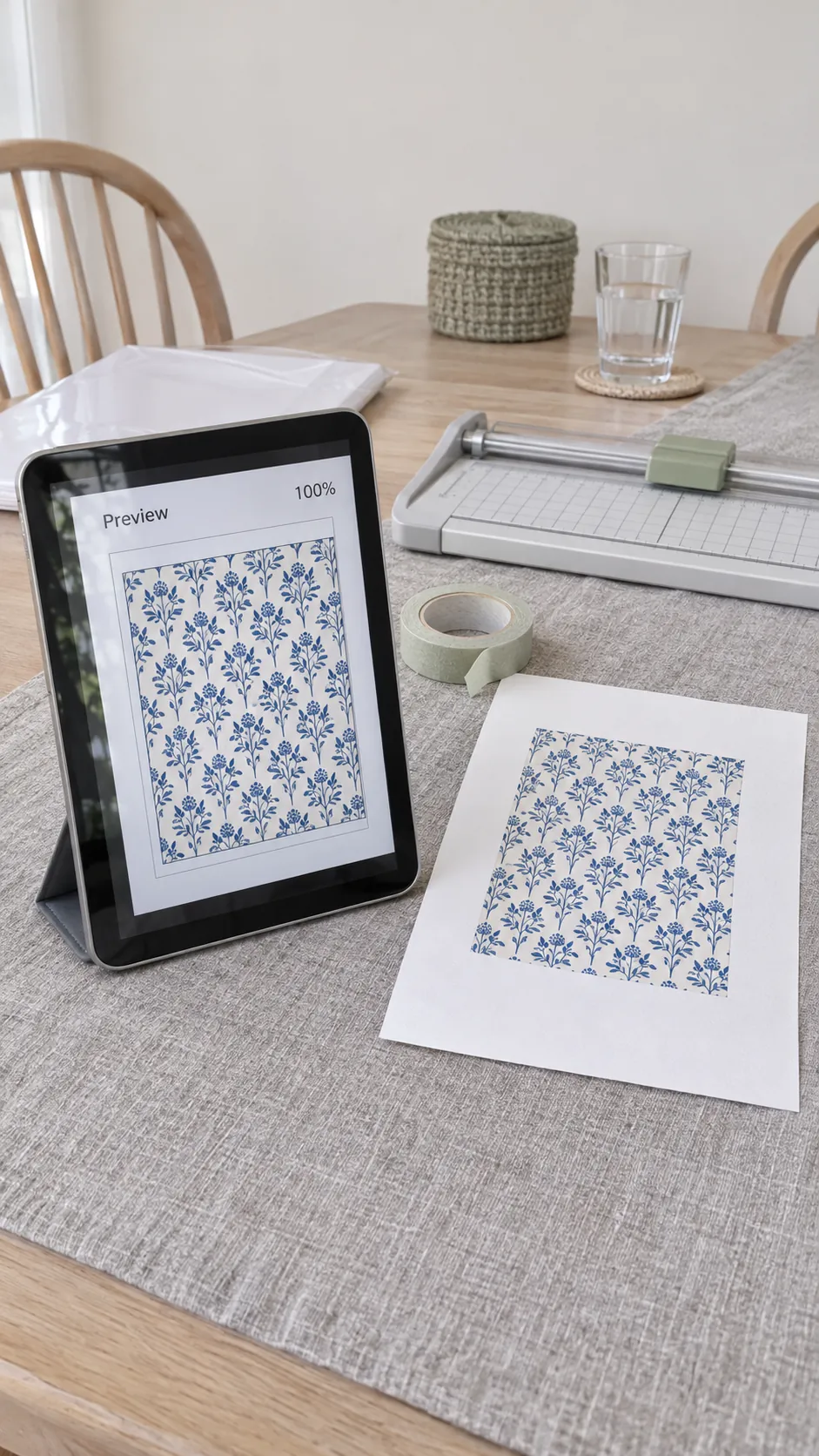
Also check the preview. A preview that shows the artwork smaller than expected, centred inside a broad border, often signals automatic reduction. If the dialog reports a custom percentage such as 94 or 97 percent, replace it with 100 percent unless the printable creator gives different instructions.
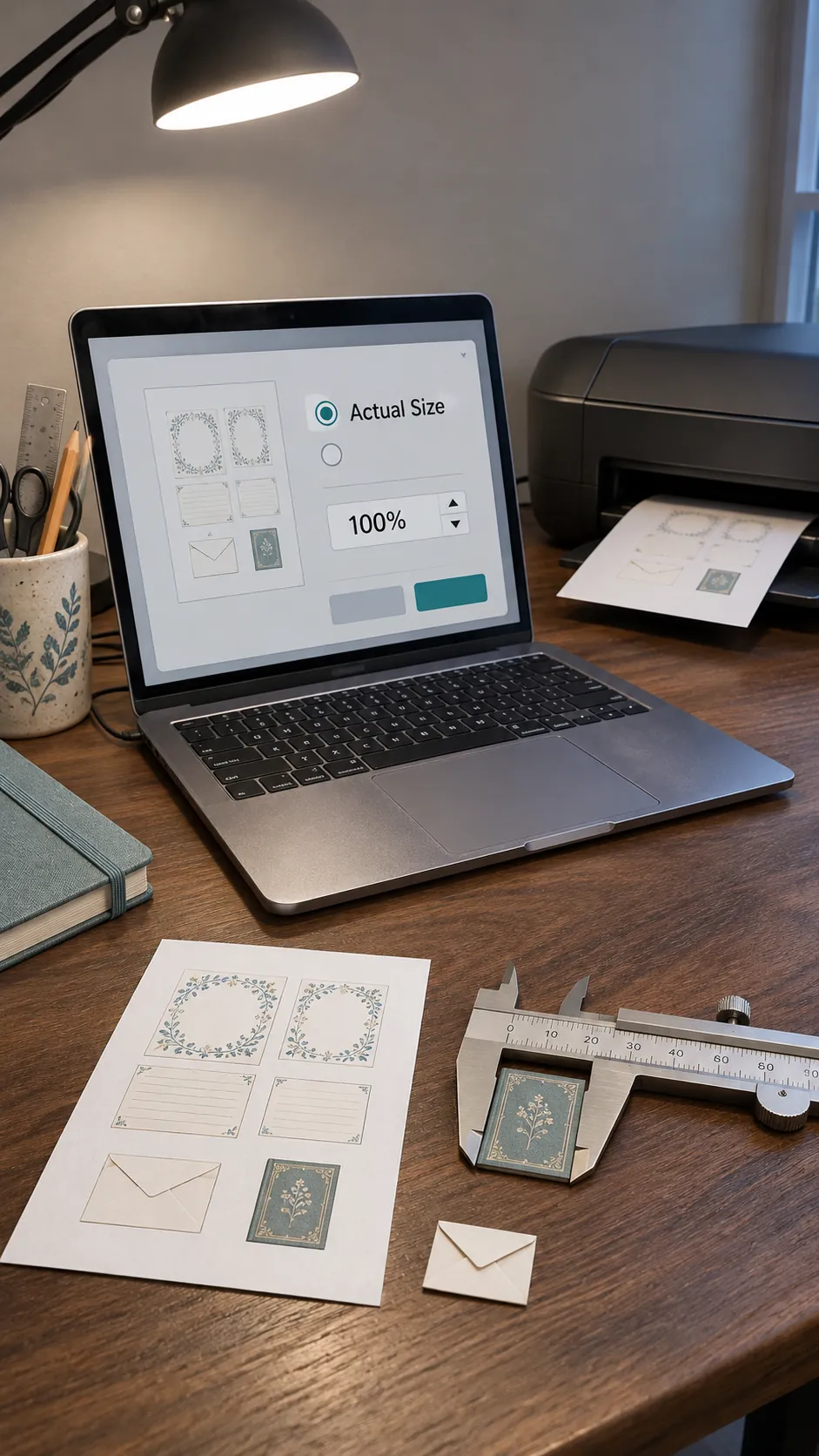
Match the printer paper setting
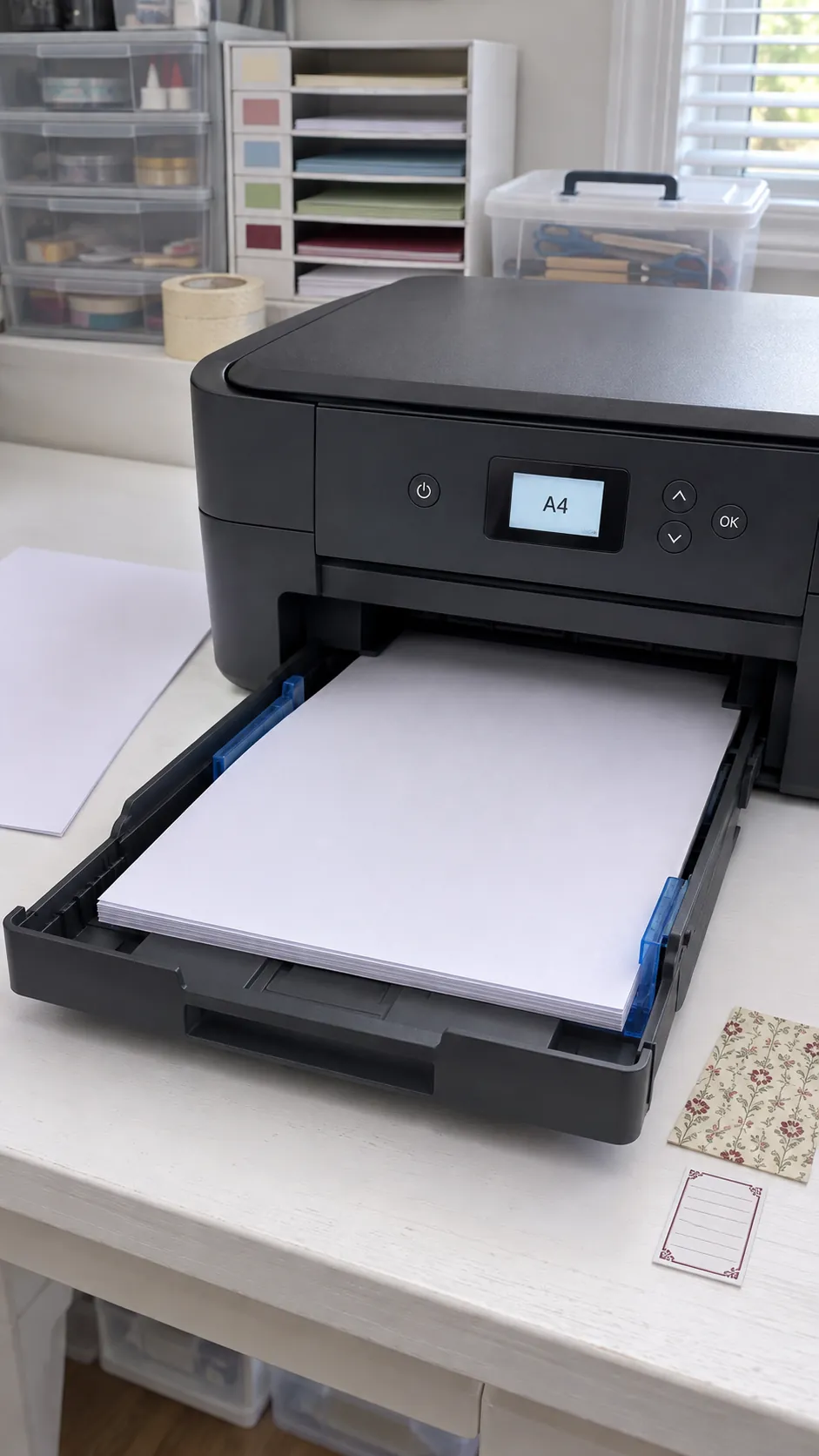
Set the printer paper menu to the paper that is physically in the tray. Choose A4 for A4 paper and Letter for US Letter paper. This tells the printer where the real sheet edges are. It does not give permission to resize the artwork.
Some printer drivers show a second paper size inside Properties or Preferences. Check that menu too. If the application says A4 while the printer driver says Letter, the driver may reposition the page, clip an edge, or apply its own reduction. Keep both menus consistent, then return to the main window and confirm that scale still reads 100 percent.
Measure a test square before using the page
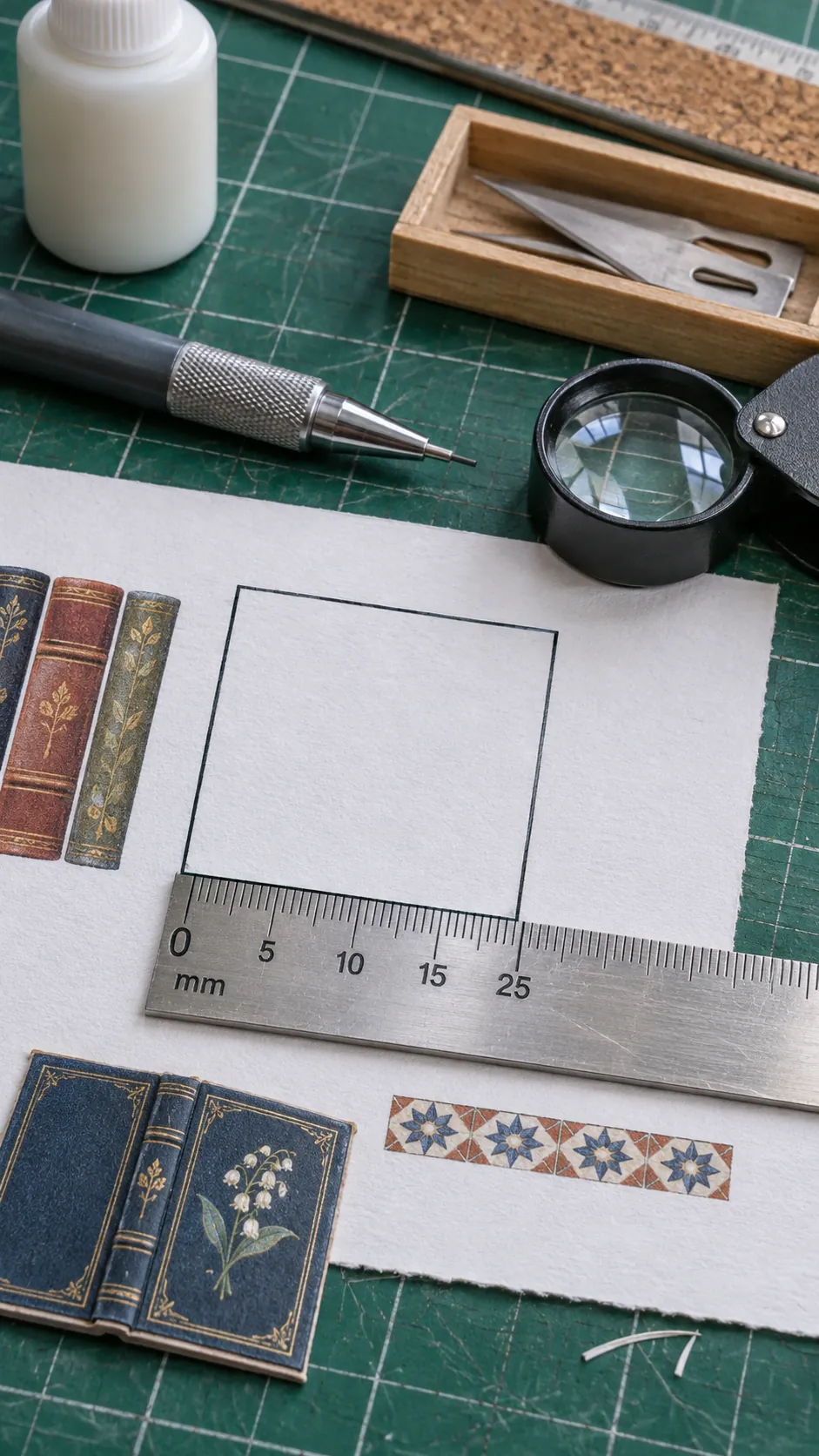
A test square is the fastest proof that the miniature print settings worked. Print one page on ordinary paper, let the sheet lie flat, and measure the marked square with a reliable ruler. Measure from the printed rule itself rather than from the paper edge.
If a 25 millimetre square measures 25 millimetres, the page scale is correct. If it measures 24 millimetres, the output is about 96 percent of the intended size. Do not compensate by guessing a larger percentage at once. Reopen the print dialog, remove automatic fitting, check both paper menus, and test again.
Handle margins and clipped edges safely
Most home printers cannot place ink all the way to every paper edge. This nonprinting margin belongs to the printer hardware, not to A4 or Letter as a format. A page can therefore be the correct size and still show a clipping warning.
If only blank margin lies outside the printable area, keep Actual Size and continue. If artwork crosses the warning boundary, do not choose Fit automatically because that changes miniature scale. Use the version made for your paper size, select borderless printing only when the printer and paper support it, or ask the creator for a page with safer margins. For a multi page pattern, changing paper formats can also change the overlap and assembly marks, so use the matching file whenever one is available.
Fix a print that still comes out wrong
When a miniature remains the wrong size, print from a dedicated PDF reader instead of a browser preview. Browsers and phone print menus often hide scaling choices. Download the file first, open it locally, and confirm Actual Size, 100 percent, and the loaded paper format again.
Next, check that the source file is suitable for printing. A screen image copied from a web page may have no defined physical size, while a properly prepared PDF can preserve it. Make one inexpensive draft, measure a known object, and record the successful settings for that printer. Once the test square is correct, move to the better paper or adhesive sheet and print the final miniature with confidence.